The editor
The animator
The pose editor. Drag a body's hands and feet and the rest of the limb follows; what you save is a list of keys, and a key is a whole pose with an easing to the next one. It takes over the viewport's dock — and can take the whole window — because posing is not a side panel's worth of work.
What it is
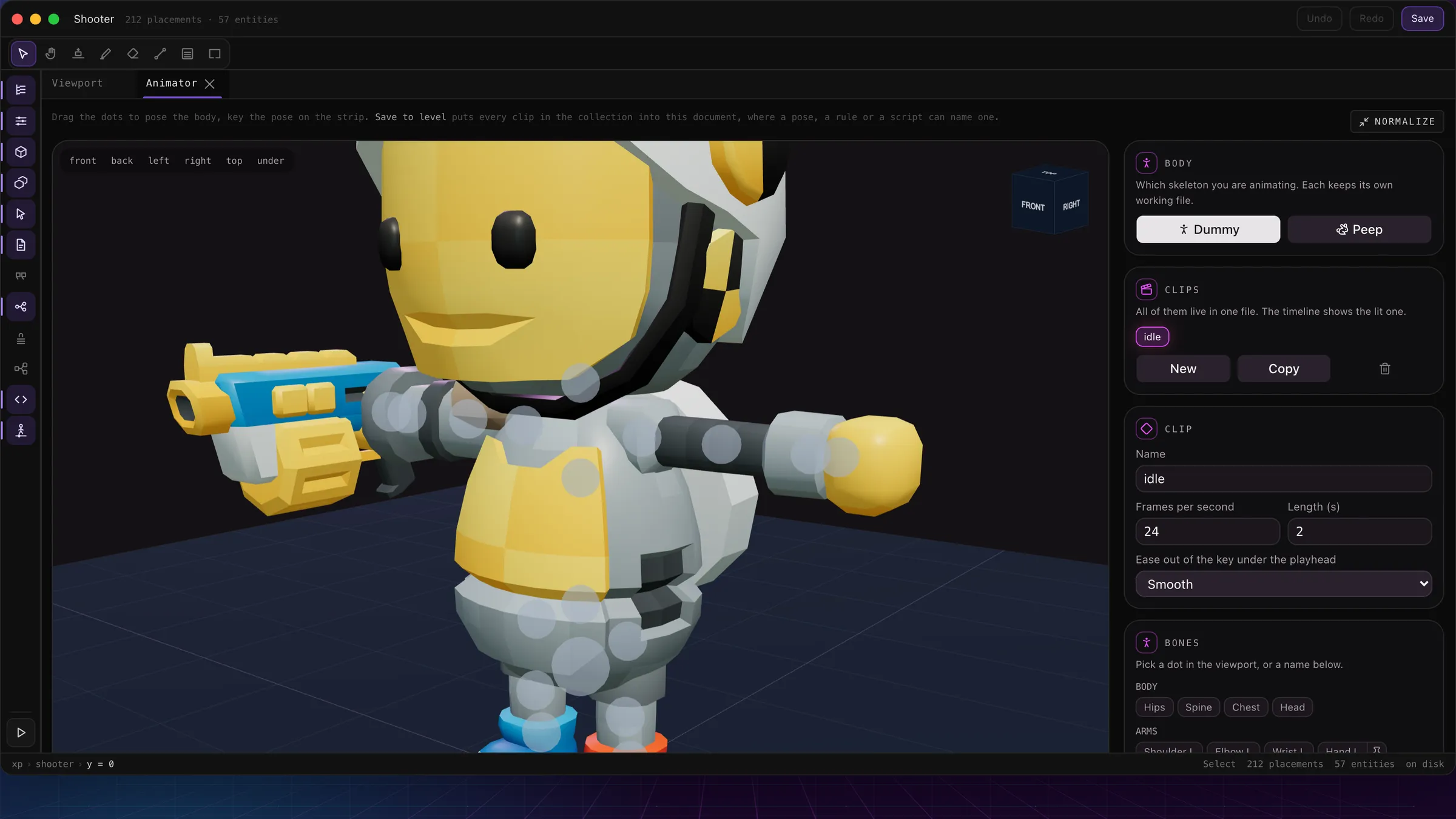
The animator with the whole dock, posing the dummy.
- 1The stage: every dot is a joint. Drag one and the limb solves after it; knees and elbows only bend the way they should.
- 2Camera presets — front, back, left, right, top, under — beside a free orbit.
- 3Body: which skeleton you are animating. The dummy and the peep share no bone names, so each keeps its own working file.
- 4Clips: all of them live in one file, and Save to level puts the collection into the document.
- 5The clip: name, frames per second, length, and the ease out of the current key.
- 6Bones: pick a dot in the viewport, or by name — for exact pitch, turn and roll.
Posing
| Drag a dot | Inverse kinematics up the chain, joint-limited so the pose stays anatomical. Shift-drag slides along the floor instead of the camera plane. |
| Hips | The one handle that moves the whole body rather than bending a joint. |
| Pins | Hands and feet can be pinned to a world point: lower the hips with the feet pinned and you get a crouch, not a body sinking through the floor. |
| Exact numbers | A selected bone gets pitch/turn/roll sliders and a straighten button. |
| Moves | Canned motions — walk, run, wave, dance, idle, jump — stamped from the playhead and speed-scaled. Each touches only the bones it names, so Walk then Arm swing layers rather than erases. |
Keys and the timeline
A video-editor strip: click to scrub, drag the playhead, drag a diamond to re-time a key. Auto-key is on by default — moving a handle records a key at the playhead. Each key carries an ease out of it: linear, smooth, or hold. Copy key / paste key is how a loop closes — copy frame zero, scrub to the end, paste.
Undo is five steps deep and coalesced — dragging one slider is one undo step, not one per pixel — and the working document autosaves locally, separate from the level draft.
Where a clip goes
Three forms, three jobs. The working file (.animation.json) is the keyed form you re-open to keep editing. A .glb is for anything outside this product. And Save to levelis the one that matters here: it bakes every clip in the collection into the document — one dense sample per frame, easing already applied — where a pose, a rule's animate verb, or a script's runAnimationcan name it. Baked rather than keyed, because two machines that disagree about what "smooth" means draw the same level differently; a straight line between samples is a thing everybody agrees about.
Two rules stop the silent failures. The rig is part of the clip: the dummy and the peep share no bone names, so a dummy clip on a peep is not wrong, it is empty — a body standing perfectly still. And a clip needs at least one bone track: a clip that only moves the root is refused, which you will meet the first time you try "slide forward and back" — give it a leg as well.
Playing one
A clip in the document is offered by every picker: a blueprint's rest pose, the animate verb on a rule, a script's self.runAnimation('clip', loop, parts) — where parts like ['arms'] lays the clip over whatever else the body is doing, so a character waves while it walks.
The one exception is the player's own body: it is animated from how it moves — idle, walk, run, air, land and the rest — and does not play arbitrary clips. What a level can do is ship its own clip under a name the stance machine already asks for, which is how you change what a swing looks like.
Shortcuts
Spaceplay / pause
Kkey now
⌫remove key
← / →step one frame
↑ / ↓next / previous key
Homejump to start
C / Vcopy / paste key
⌘Z / ⇧⌘Zundo / redo